
Browse docs
File Explorer and Shared Documents
One place for job documents
The File Explorer app brings each job's record views and incoming Shared Documents into the same tablet workspace. Open Explorer folders with a double-click, follow the breadcrumb path, and use Back to move up one folder. Open a record from its own job view. Search includes nested folders and shared-document categories; results still follow the current access rules. Narrow a search when it reaches the 100-result limit.
| Job | Saved records with Print and Share |
|---|---|
| Police departments, including LSPD and Sheriff | Citizen and vehicle records, cases, reports, warrants and BOLOs |
| Ambulance | Patient records, medical reports and medical evaluations |
| Fire | Incident reports |
| Mechanic | Vehicle records, workshop orders and invoices |
| DOJ | Case documents and document-folder access in the case File Explorer |
The app also links to related job views, such as insurance and subscriptions. Opening a view from File Explorer does not give every entry in that view document actions. Save a record before using its Print or Share controls.
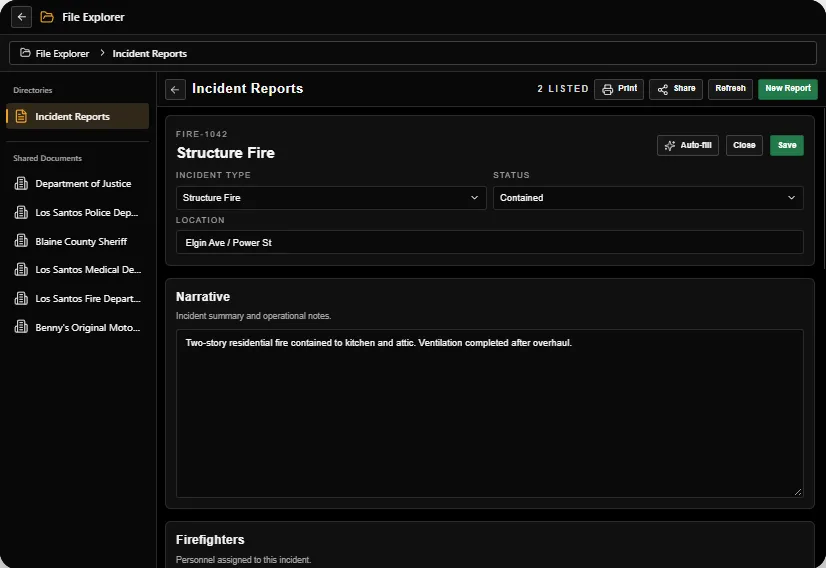
Share, change recipients and revoke
Open a saved record and choose Share. Select the recipient jobs and save the selection. Reopen the same dialog to add or remove recipients, or revoke the share. DOJ casework also manages access to its own documents and folders.
Receiving departments see the originating department and document category in Shared Documents. They receive read access to the released record; this does not give them permission to edit the original or share it onward. The source department retains control. Job, duty, app and document permissions continue to apply when a document is opened or printed.
Document-level grants replace the old broad Share → Records rules. Review existing releases after updating. Course and qualification sharing remains separate from document access.
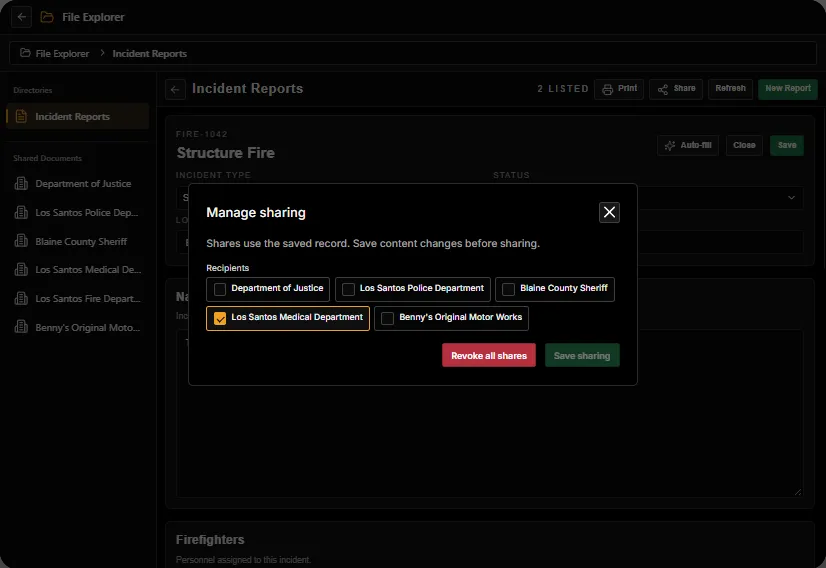
DOJ placement for linked records
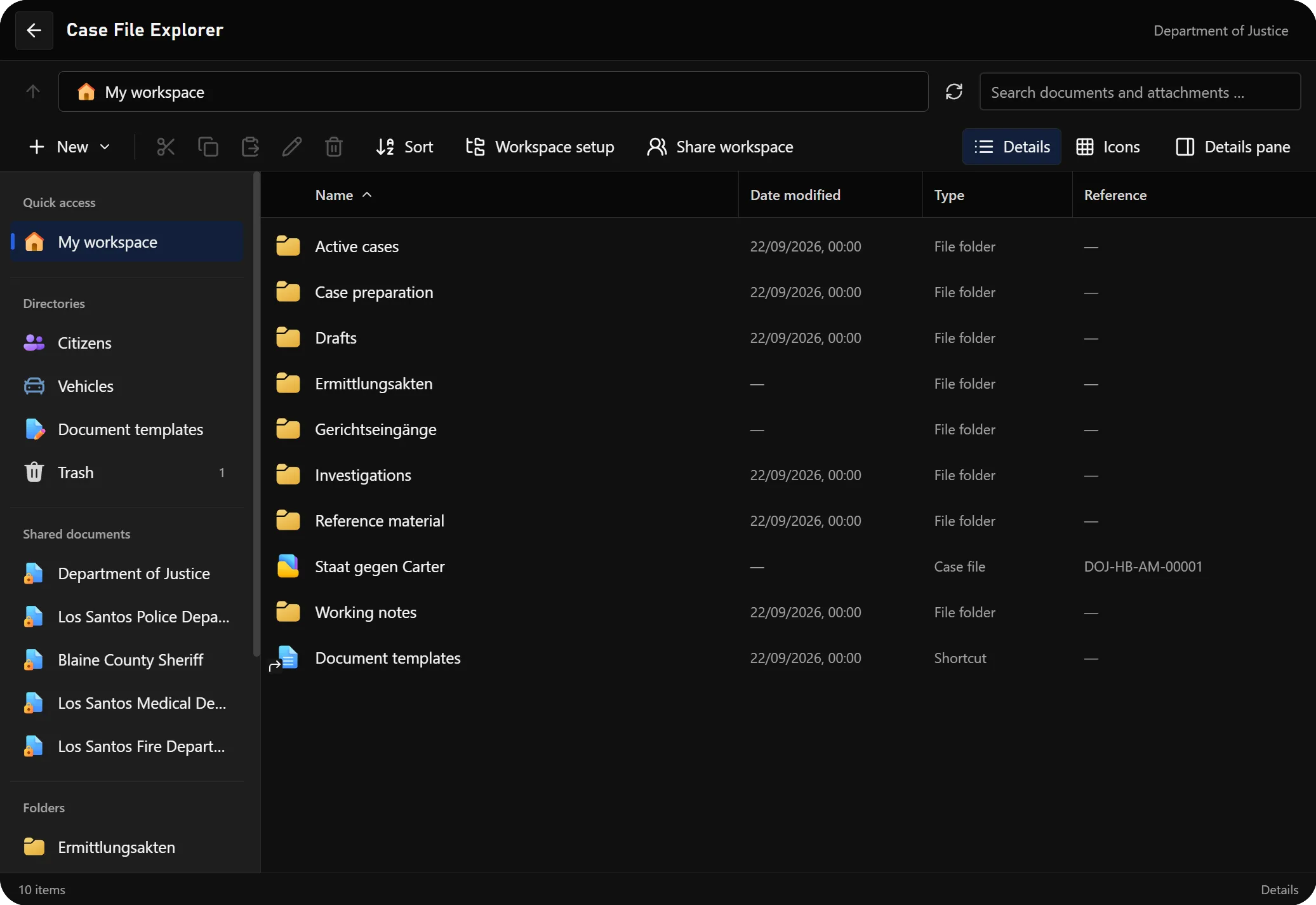
When a released record has a primary citizen or vehicle association, DOJ places it inside that person or vehicle record: Shared Documents → originating department → document category. A secondary mention alone does not choose its main location. The Shared Documents links in the DOJ sidebar contain documents without a primary person or vehicle assignment. Other job explorers keep received records in their department-based Shared Documents area.
Fire reports use the selected civilian's stable character identity for this placement. Older reports containing only a typed name stay readable, but a name alone cannot reliably select a person record. Select the matching civilian and save the report to establish that link.
Sky DOJ remains in development; these DOJ-specific views require the matching DOJ installation.
Print and document appearance
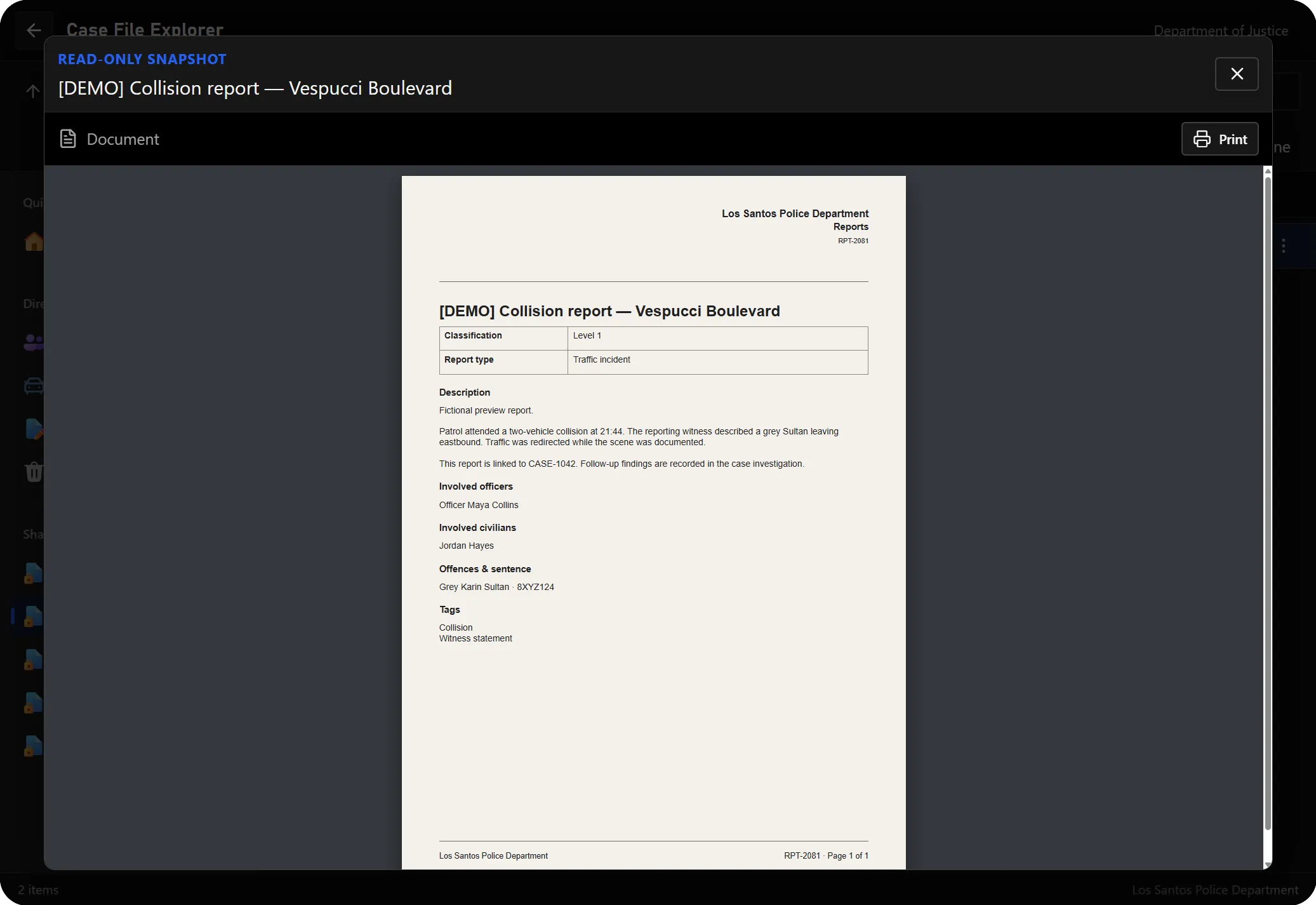
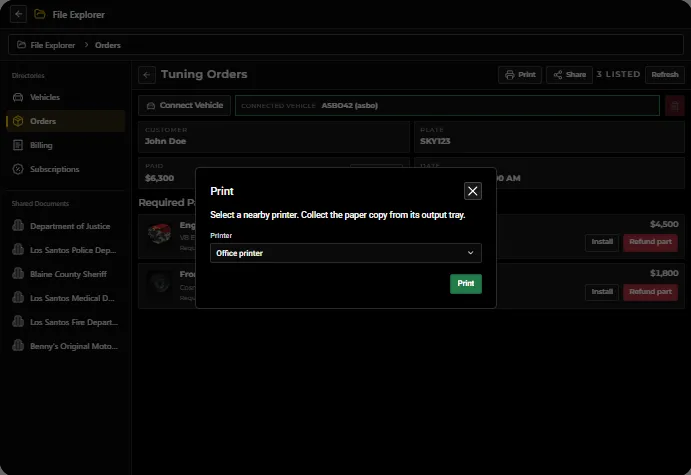
Use Print on a saved record to choose an available job printer. Incoming Shared Documents open in a document preview before printing. Printing uses the configured printer access, paper and collection workflow. Access is checked again for a pending print; a share revoked before collection cannot be used to collect that job.
The common document renderer belongs to Jobs Base, so an installed source job can render its records without DOJ running. The source resource is still required to read its own records. Shared layouts keep the document structure consistent. Header-logo space is reserved for the server's own branding; no generic department badge is required.
Working in a team
Open tablets refresh their record lists after relevant changes while keeping unsaved drafts. Police, EMS and Fire report editors detect a newer saved revision and preserve the local draft instead of overwriting a colleague's work. Load the current report deliberately, review the changes and reapply the required edits. This is conflict detection, not simultaneous text editing.
Sharing has its own conflict check. Saving ordinary report content does not restore recipients who were removed by another member. If a Share dialog is stale, compare it with the current access before saving again.
Setup and updates
Update sky_base, sky_jobs_base and the installed job resources together. Apply their automatic
database migrations, or the matching import.sql changes when automatic migration is disabled,
before starting the updated resources. Existing records are retained; the migrations add the
revision fields needed by the editors and sharing dialogs.
Keep the File Explorer and underlying record apps enabled for the intended job grades. Configure job printers through the existing placement and access settings. Medical evaluation creation and sharing still require the medical-evaluation permission; an evaluation can be saved privately without recipient jobs.
Before enabling the updated workflow for players, test a saved record with an owner and a receiving job: print it, grant access, edit recipients, revoke access, and confirm the recipient can no longer open it. Test concurrent report edits with two members and confirm both drafts are preserved.