
Browse docs
Configuration
Open /huntingconfig from a connected administrator character. Make your changes, save them and apply them when players are ready for a Hunting restart. Interface language comes from Sky Base.
Settings source
| Source | When it applies |
|---|---|
config/config.lua in the installed resource | Hunting loads these defaults at startup. |
Settings saved from /huntingconfig | Hunting loads the saved database overrides over the Lua defaults at startup. |
After editing Lua, restart Hunting to activate values that are still using defaults. Edit values already saved in the database from the panel.
Configuration sections
| Section | What to configure |
|---|---|
| Prices | Equipment, bait, cages, rentals, hunting goods and sale multipliers |
| NPCs and locations | Shop, poacher, butcher, blips and rental parking |
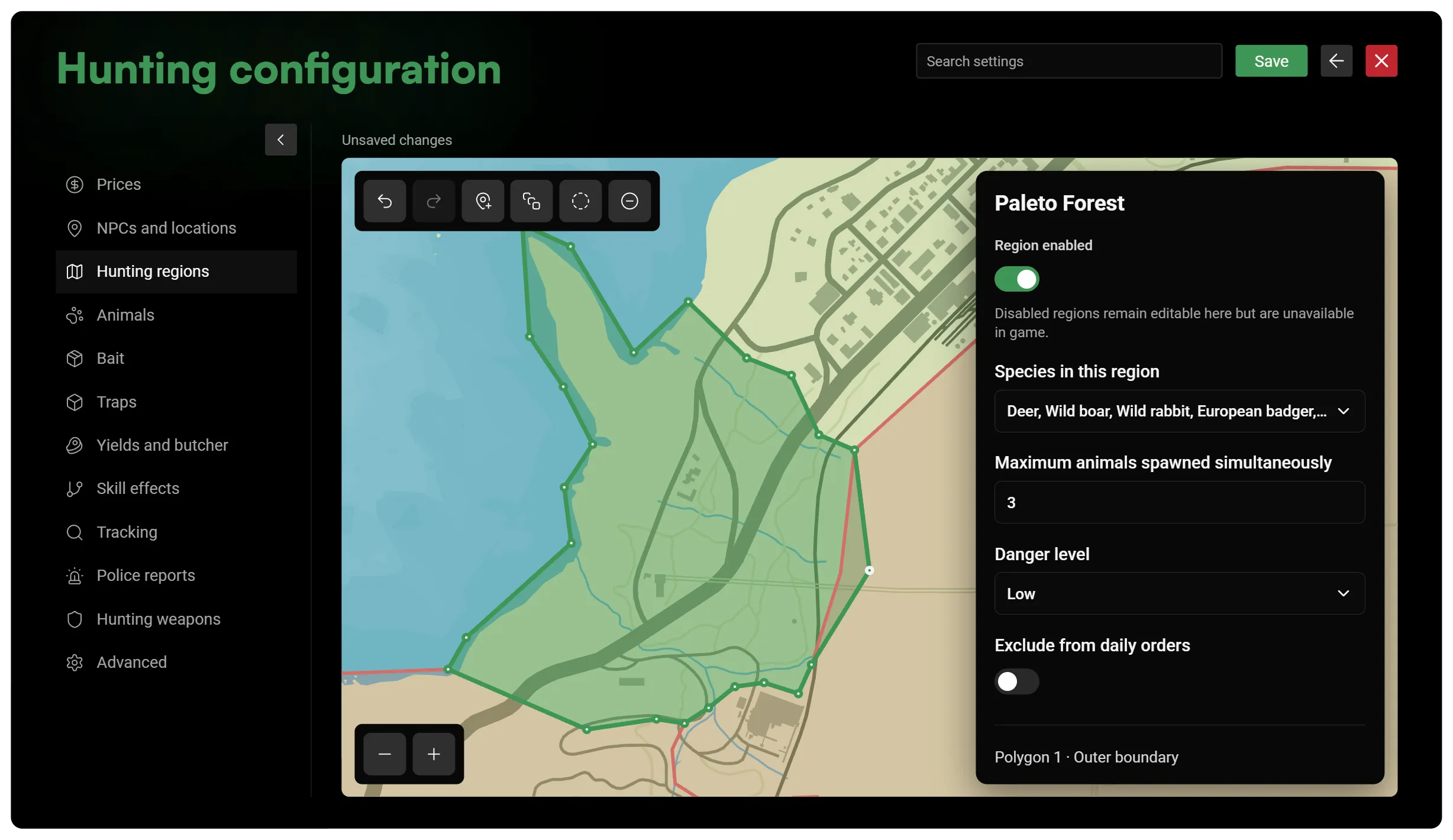
| Hunting regions and Animals | Region boundaries, species pools, population caps, protected species and predator chances |
| Bait, Traps and Tracking | Placed bait and cage limits, catch timers and tracking ranges |
| Yields and butcher and Skill effects | Field rewards, processing, sales bonuses and skill bonuses |
| Hunting weapons | Shop order, prices, ammunition mapping and displayed names |
| Police reports and Advanced | Dispatch options, the payment account and inventory item IDs |
Administrator access
With the Sky Base permissions bootstrap in place, admin, superadmin and god are the shipped administrator groups for /huntingconfig. If you use a custom group, assign your staff principal to it and grant both command permissions. For a group named huntingadmin, add the following entries.
add_ace group.huntingadmin command.huntingconfig allow
add_ace group.huntingadmin sky_hunting.huntingconfig allow
To use Apply from the panel, grant Hunting permission to request its own restart:
add_ace resource.sky_hunting command.restart allow
add_ace resource.sky_hunting command.stop allow
add_ace resource.sky_hunting command.start allow
Save and apply changes
Edit the settings
Open /huntingconfig, change the fields you need and accept edits within the editor. In Hunting regions, keep an enabled species pool consistent with the region's predator chance. For example, a region with a nonzero predator chance needs at least one eligible predator.
Save
Choose Save to store the edited settings. The panel shows when saved changes are waiting to be applied.
Apply when players are ready
Have players collect cages and bait, return rentals and finish any processing or deliveries. Choose Apply to request a Hunting restart. If the panel reports a blocker, resolve it and choose Apply again. A planned server restart also activates the saved settings. A restart clears the active wildlife and placed hunting equipment.
Verify the result
Reopen the panel to confirm that the changes are applied. Test the changed setting with a regular player. For example, revisit the lodge to verify a new shop price or open the Hunting map to check an edited region.
Edit the weapon catalogue
The first weapon in Hunting weapons is available from the start. Each later weapon costs one skill point to unlock and requires the previous weapon in order. Players then purchase the unlocked equipment separately.
Use the exact weapon and ammunition IDs from your inventory. Install custom weapon assets and inventory definitions before referencing them here. After reordering or replacing a weapon, check the skill tree and shop with an existing character. Inventory items
Update an existing configuration
Keep a database backup and merge deliberate changes to Lua defaults into the new file. The first database-backed start can import older saved Lua or JSON overrides. Database and updates