
Browse docs
Livestreams and radio
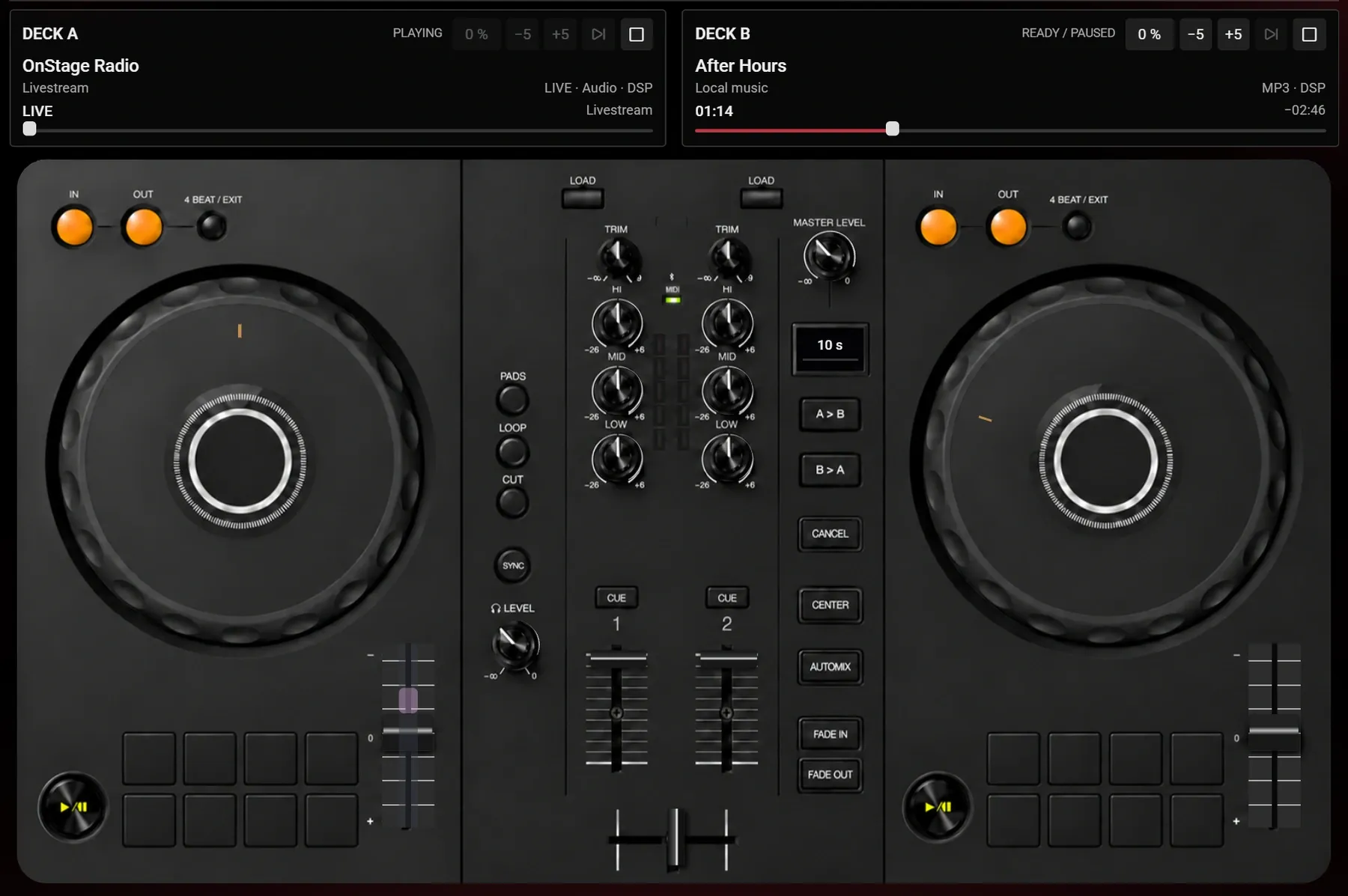
Play a continuous radio station or your own live broadcast through a club's existing speakers. Administrators add the source to a playlist; authorized DJs load that assigned source into deck A or B. The mixer shows LIVE instead of a finite song duration.
Sky DJ receives an existing broadcast. It does not host, encode or relay a radio station; supply the direct URL from your streaming provider or separately prepared broadcast setup.
Livestream playback and Music Sync are separate options. Both are off by default. You can play a stream without music-reactive lights, or enable Music Sync for its decoded audio.
Enable livestreams
With the default Config.IngameSettings = true, an administrator opens /djadmin → Settings → Music & Playlists → Library & Queues, checks Enable livestreams and saves the settings. The saved choice applies live and remains after a restart. Other managed values in config/config.lua do not replace saved SQL settings in this mode.

For file-owned settings, change the existing LivestreamEnabled entry to true inside the Config table in config/config.lua, then restart sky_dj. This requires Config.IngameSettings = false; read Configuration ownership before switching modes.
IngameSettings = false,
LivestreamEnabled = true,
The Normal / On-demand MP3 choice only controls your local MP3 library. It does not enable livestreams or prepare their audio. A direct radio/HLS source does not need the on-demand encoder.
Add a station to a playlist
Select an administrator-managed playlist
Open Settings → Music & Playlists → Playlists. Create a playlist or select an existing one, then expand Add livestream. Library administration remains separate from permission to operate a club's DJ booth.
Enter the title, direct URL and format
Give the source a recognizable Stream title, paste its public Stream URL and select Stream format:
| Format | Use it for |
|---|---|
| Audio (MP3 / AAC / M4A) | A direct browser-compatible audio broadcast, such as an HTTPS radio .mp3 endpoint |
| HLS (.m3u8) | An HLS broadcast playlist; select this explicitly if its endpoint has no .m3u8 extension |
Use the provider's direct playback URL, for example https://radio.example.com/live.mp3. This is a format example, not a supplied station. A web page with a Play button is not itself an audio stream.
Add the source and assign the playlist
Choose Add livestream, check that the source appears with its LIVE/format label, then assign the playlist to the intended club in the club editor and save the club. DJs can only load sources from that club's assigned playlists; they do not gain permission to add arbitrary stream URLs.
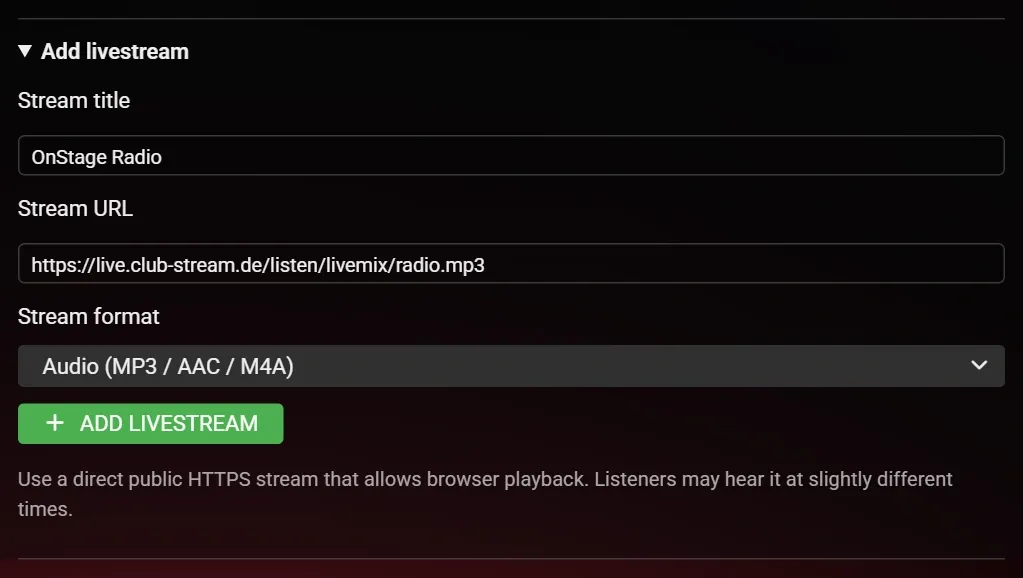
You can keep local MP3s and live sources in the same playlist. The local MP3 filename rules do not apply to a station's display title; the station still needs a valid direct HTTPS URL.
Operate a LIVE deck
At the club's booth, load the assigned station into deck A or B. Wait for playback to connect, then check the channel fader, crossfader, Main PA and speaker coverage as you would for a local track.
| Control | Live-source behavior |
|---|---|
| Play / pause | Pause disconnects the source; play opens a fresh connection to the broadcast |
| Channel level, trim, EQ and crossfader | Remain available for manual mixing |
| Headphones / PFL | Previews the source for the local DJ; its connection can have a different buffer from the Main PA |
| Stop / next | Stops the current source or advances to the next queued entry |
| Seek, jog seeking, loops and tempo | Unavailable for a live source |
| Automix and automatic transitions | Unavailable while live decks are involved; use the faders and crossfader manually |
A live source runs until you pause, stop or skip it. It has no track ending for a timed handover. Ending or stalled connections attempt to reconnect; an offline provider, unsupported codec or blocked browser playback still needs attention.
Make lights and effects follow the broadcast
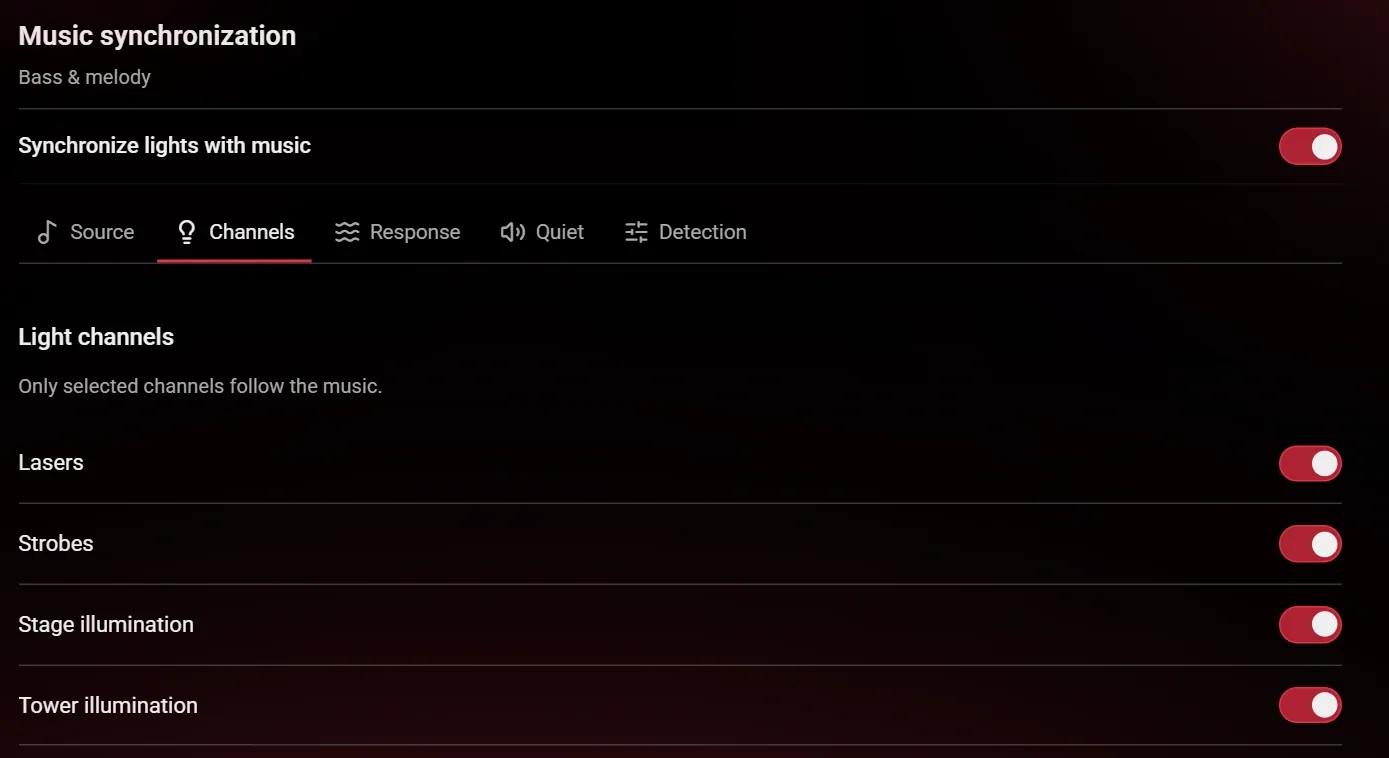
Music Sync analyzes the audio that the selected club deck/mix is playing. It can follow local MP3s and supported livestreams, using the same existing fixtures and response controls.
| Where you are operating | Where to enable Music Sync |
|---|---|
| Global normal-club settings | /djadmin → Settings → Music synchronization → Synchronize lights with music; select the source and channels, then save |
| A custom club's own show | The DJ's Lights & effects → Music Sync controls; save that club's settings |
| The fixed festival | The separate FOH → Music Sync page; save there |
The club and festival controls can run their own response while global Music Sync is off. You do not need to turn on every enable switch. The global Enable livestreams setting is still required to load a live source.
Keep the intended fixtures switched on or in Automatic, and enable the relevant response channels. Music Sync does not restore a device's saved OFF state or start the music for you. On the festival FOH desk, saving Music Sync returns manually owned channels to automatic control. See Lights and effects for channel participation, sensitivity and strong-peak effects.
Start with a source that has a clear beat. Speech, quiet passages and melody without confirmed beats need not produce strobe or flame cues. Music Sync follows the broadcast; it does not change its tempo or create an authored lighting timeline.
HTTPS, CORS and network access
The provider must supply browser-compatible audio over public HTTPS with a valid certificate and allow the resource's browser origin, https://cfx-nui-sky_dj, through CORS. For HLS, the manifest, segments and any required keys must all be reachable over HTTPS with the required access. An HTTPS web page alone is not proof that its player exposes a usable stream.
Each listener connects directly to the provider. For a normal HTTPS endpoint, the player's connection needs outbound TCP 443 and working DNS. This feature needs no additional incoming port on your FiveM game server. A restrictive client network may need to allow the provider and any separate HLS delivery hosts. CORS is configured by the stream provider, not by opening a game-server firewall port.
Listeners and PFL connections can buffer differently. The same broadcast and a shared light sequence therefore do not guarantee that every player hears the same beat at exactly the same instant. Test the actual station, clients, venue entry and source recovery before a live event.
YouTube and Spotify links
Normal YouTube and Spotify page links are not direct radio/HLS sources for the club decks. Their separate embedded players do not feed Sky DJ's Music Sync analyzer. A CORS setting alone cannot turn those page links into an analyzable audio stream.
The boombox uses supported YouTube links for nearby shared playback and a separate personal Spotify Embed. Those players do not drive this club light show. Use a supported direct audio/HLS source or your local MP3 library for Music Sync.
Disable or update without losing your playlists
Uncheck Enable livestreams and save to disconnect current live playback and pause its decks. Saved stations, playlist assignments and queues are retained. Enabling the option again does not silently resume every paused station; load or resume the intended source.
Changing a saved in-game setting does not need a resource restart. Editing file-owned settings or installing an updated resource does. Preserve the complete matching resource files and existing saved data when updating. Receiving an existing public stream needs no additional service installed beside Sky DJ and no SQL reset.
If a source is silent, does not connect or produces no light response, use the livestream troubleshooting checks.