
Browse docs
Tablet and File Explorer
Open Case Files from the shared tablet. The application is shown for configured DOJ jobs when the tablet module is enabled. Your role mapping and permissions determine which content and actions are available.
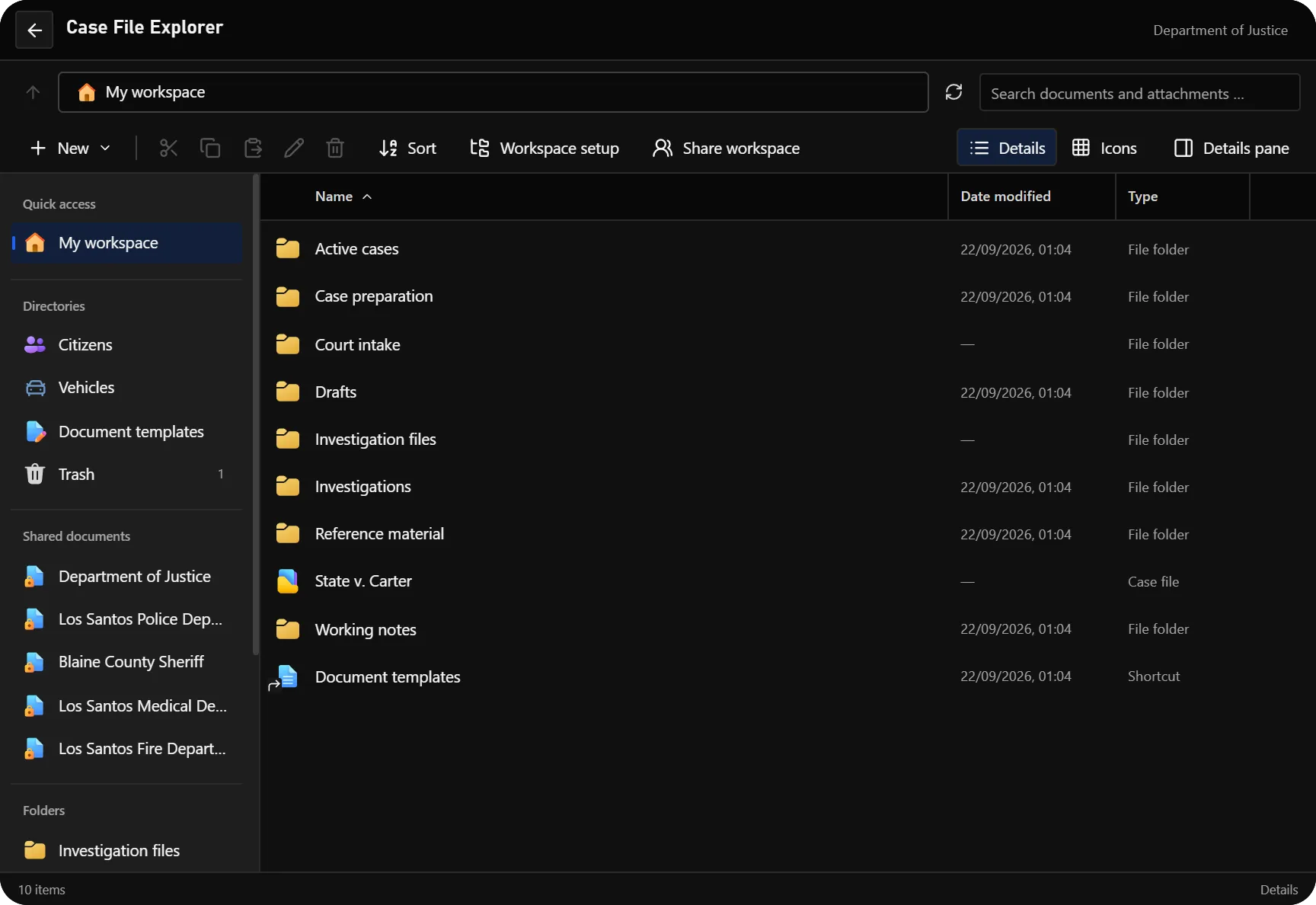
Directories
| Area | Purpose |
|---|---|
| My workspace | Your folders, case files, documents, attachments and shortcuts |
| Citizens | Person records and their associated case content |
| Vehicles | Vehicle records and their associated case content |
| Handovers | Received and sent tasks, judicial requests and case-responsibility transfers |
| Document templates | Shared and personal template libraries |
| Registry | Optional civil/custom registries, when enabled |
| Trash | Entries you can restore from trash |
| Shared workspaces | Other DOJ workspaces explicitly shared with you |
| Shared documents | Incoming documents grouped by issuing agency |
A case file groups related documents and attachments and receives its case number when created. The Explorer shows case numbers, File IDs, modification dates and entry types. A folder organizes entries; a shortcut points to an existing target and does not duplicate it or grant additional access. See Cases and handovers for assigning loose files, passing on the case and packaging folders as ZIPs.
Navigation and search
Click an entry once to select it. Double-click, press Enter or use Open to enter a folder, citizen or vehicle record. The vehicle owner link opens the associated person record where that owner can be resolved and accessed.
Back returns one level at a time. Breadcrumbs let you return directly to an ancestor. Long paths collapse earlier ancestors into a menu instead of showing a horizontal scrollbar.
Use Details, Icons and the details pane to choose how entries are displayed. Search from the relevant directory or workspace. Workspace folder searches include accessible descendants; results retain their source path so you can distinguish identically named documents. Search follows access rules and does not reveal inaccessible records.
Organize case work
Use New to create an entry supported by the current directory. Within your writable workspace, the available toolbar and context-menu actions include renaming, moving, copying, shortcuts and moving entries to trash. Choose the destination when moving or copying between folders.
Workspace setup applies a predefined layout to your workspace. Use it to establish a common starting structure for case preparation without manually creating every folder. It organizes your workspace; it does not add permissions to unrelated cases.
Deleting a shortcut removes the shortcut rather than its target. Trashed entries appear in Trash, where authorized users can restore them. System-generated folders have their own icons and pin indicators and are protected from ordinary rename, move and delete operations.
Citizens and Vehicles
Open a person or vehicle to see the material associated with that record. Police records contains the automatic documents supplied by the Police integration. These records are read-only source material, not documents that have been signed by a DOJ official.
Shared documents contains explicitly released material whose primary subject is this citizen or vehicle. Inside it, choose the issuing department and then the document category. A witness, staff participant or vehicle owner is not automatically treated as an additional primary subject of every linked file.
The sidebar's agency links show documents that have no primary citizen or vehicle assignment. This placement rule is specific to DOJ; another job's Shared Documents directory can show its complete incoming catalog.
Vehicle inspection and registration reports
Inside a vehicle record, open Vehicle reports to view inspection status, registration and saved report history supplied by Mechanic. DOJ has read-only access here; it does not issue a vehicle inspection through this panel.
The shared Vehicle reports permission (1401), an active DOJ job and duty are required. The Mechanic features ToggleFeatures.kuv and ToggleFeatures.vehicleRegistration control which source records are available.
Citizen details and context menus also expose permitted license and bank-investigation actions. Their provider requirements and permissions are explained in Finance.
Share your workspace with a colleague
Open workspace sharing
In My workspace, choose Share workspace. Select a member of your current job.
Choose access
View is the default and allows reading. Edit also allows ordinary workspace and draft changes within your workspace. Save the grant.
Open the incoming workspace
The colleague finds it under Shared workspaces. New files created there belong to the workspace owner.
Change or remove access
Return to Share workspace to change View/Edit or remove access. An independent case membership remains in effect if the colleague also has one.
Workspace access does not grant permission to sign, request a signature or redistribute a document. For those workflows, use Documents and signatures and Sharing and printing.
Work on a file together
Save before another action needs the stored document, such as signing, sharing or printing. Changes from another team member can make your open revision outdated. If the editor reports a version conflict, keep your draft, inspect the current version and resolve the difference before saving again. Do not assume the most recent click overwrote the other user's work.