
Browse docs
Elections & Public Displays
Election management
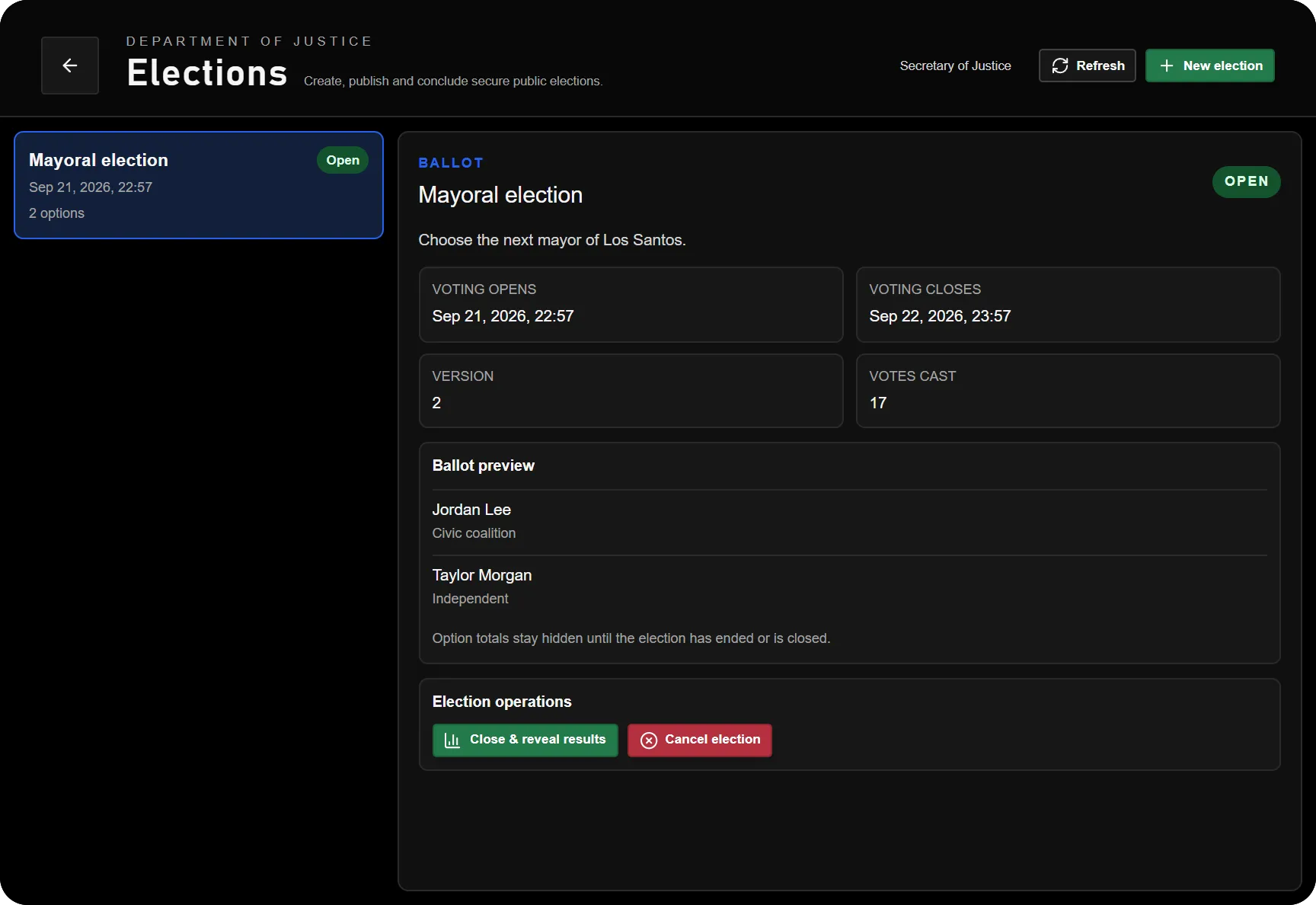
DOJ staff manage election drafts, choices, voting periods and results in the Elections app. Citizens cast their vote at a configured digital booth. A courtroom's evidence screens and the courthouse's public schedule displays are separate systems.
Setup
- Enable
Config.ToggleFeatures.electionsand allow thedoj_electionsapp for the intended grades. Assign Manage elections to the staff who administer ballots. The normal tablet duty requirement applies. - Select the DOJ job and courthouse in
/jobconfig. Add a Digital voting booth to its locations and place it with an accessible entrance. The default model issky_doj_voting_booth_01. - Configure a private election pepper before publishing or testing a ballot. Use at least 32 random characters, saved only in the server configuration:
set sky_dojjob_election_pepper "REPLACE_WITH_A_PRIVATE_RANDOM_VALUE_OF_AT_LEAST_32_CHARACTERS"
Generate a real secret; the example is a placeholder. Do not use a replicated or server-info setting such as setr or sets. Restrict access to the secret and include it in your protected server backups.
The database migrations must include the election tables and their voter-key uniqueness constraint. Voting refuses to start with an incompatible or incomplete schema. Do not remove the uniqueness constraint to work around an error.
Create and run a ballot
- Create a draft with its public title, description, opening time, closing time and answer options.
- Review the ballot text and schedule. Defaults allow 2–12 options, a minimum duration of 5 minutes and a maximum duration of 30 days.
- Save the draft. Draft edits use version checks so a second editor cannot silently overwrite the version you opened.
- Publish the draft when it is ready. A published future election is scheduled; voters cannot vote before its opening time.
- During the voting period, citizens approach a booth, open the ballot, choose an option and submit their vote. The server checks their current booth access, election state and whether they have already voted.
- Review results after the voting period has ended, or close the election through the staff controls. Cancel a draft or published election when the ballot should no longer proceed.
An elapsed closing time and the staff Close action are distinct: the time-ended election no longer accepts votes, but its persisted status may still be published until staff close it. This matters when rotating the secret.
The standard booth interaction opens the ballot at the booth; Escape closes it. Keep the entrance clear and place the booth so players can stand inside the interaction area. This is in-world voting, not an unrestricted remote ballot from any location.
One vote and privacy
The server enforces one recorded vote per election and citizen identity. Repeated submissions or visiting a second booth do not create a second vote for the same identity.
Vote rows use an election-scoped pseudonymous voter key instead of storing the citizen identifier directly. This is pseudonymisation, not anonymity. Protect the pepper, database access and ordinary server logs. This does not implement real-world electoral certification or establish one vote per real person across independently created game identities.
The public ballot payload excludes staff identifiers, internal fields and live option counts. Staff and public terminal views are separate payloads; do not treat a screenshot of the staff view as the citizen view.
Secret rotation
Publishing binds the election to a fingerprint of the current pepper. Changing the pepper while any election still has persisted status Published locks voting rather than generating a second voter key.
Before rotation, close or cancel every published election, including scheduled elections and time-ended elections awaiting administrative closure. Then update the private secret and publish new drafts. Do not overwrite stored fingerprints to force old published elections to accept a new pepper. Restore the original secret or close/cancel and recreate the affected ballot.
Historical elections using an older pepper remain available to staff but are omitted from the public terminal after rotation.
Public hearing displays
Enable Config.ToggleFeatures.publicDisplays and Config.PublicDisplays.enabled. Under the courthouse's locations, place the desired public wall screen, desk monitor or floor terminal. Fresh installations have no display placements.
The public docket shows public hearings, courtroom occupancy, times, status and directions. Only hearings enabled for public display are included; the related calendar visibility also applies. Use the hearing's subject and judge reveal controls deliberately:
| Setting | Public effect |
|---|---|
| Public hearing enabled | Allows the hearing to appear on the docket. |
| Reveal subject | Shows the configured public subject; otherwise the case label stays neutral. |
| Reveal judge | Includes the configured judge display name. |
| Wayfinding | Helps visitors find the courtroom without exposing the private case record. |
The default display window covers the previous 120 minutes and the next 48 hours, with up to six visible rows. A public docket does not grant access to case files, witness statements or evidence. To show admitted exhibits inside a room, configure that room's evidence displays instead; see Hearings & Courtrooms.
Troubleshooting
| Symptom | Check |
|---|---|
| Publishing or voting reports a secret error | Private pepper length, server configuration and the election's existing fingerprint. |
| An election is missing from a booth | Publication state, schedule, active pepper and booth configuration. |
| A second submission is refused | The existing vote is retained; do not clear the constraint to permit another. |
| A public screen shows no hearing | Display placement/activation, time window, hearing public flag and calendar visibility. |
| A participant's name is missing | Public subject/judge reveal controls; private participant data is intentionally omitted. |
General installation and permission setup are covered under Installation and Permissions.