
Browse docs
Hearings & Courtrooms
Hearing and courtroom session
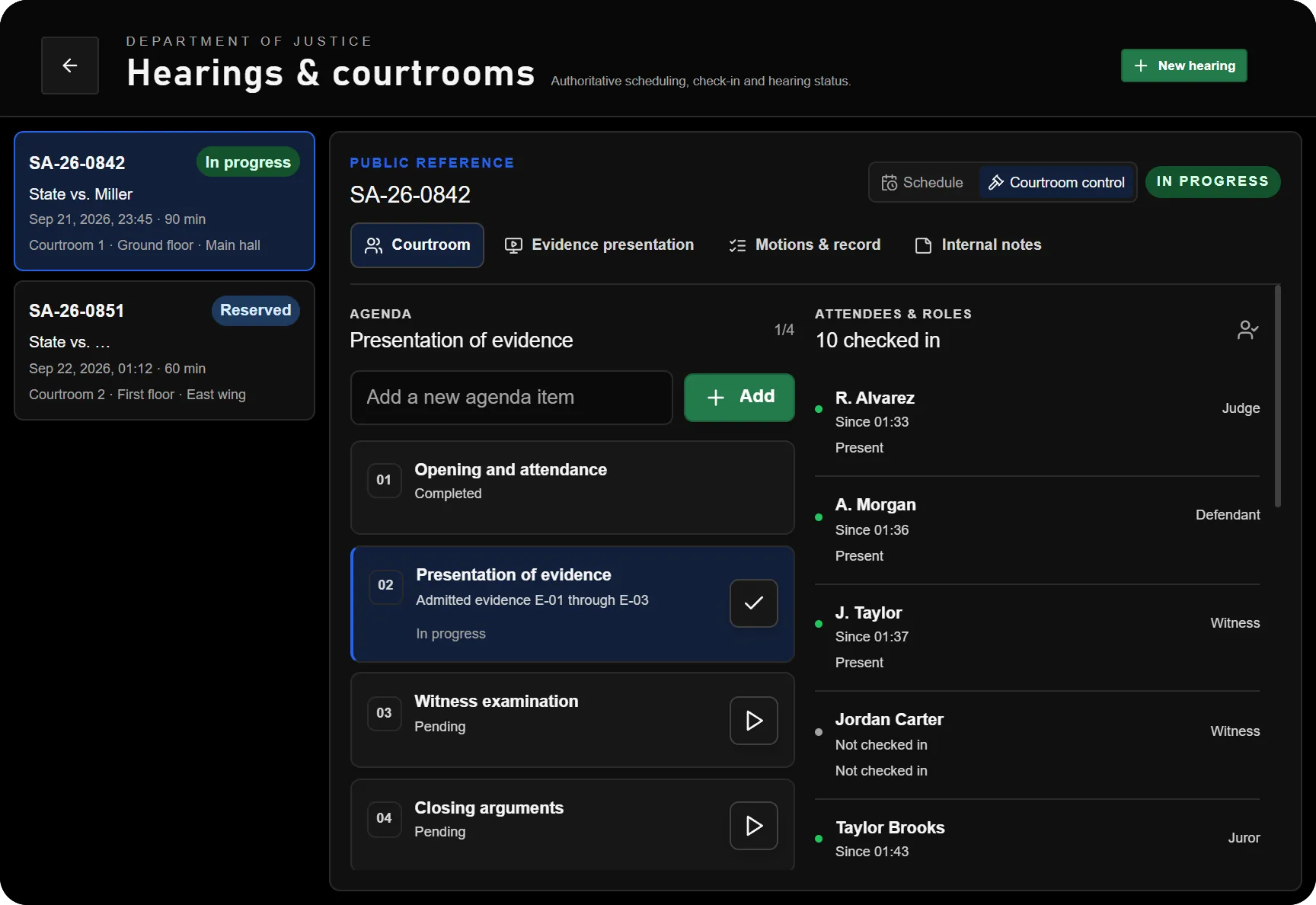
A hearing owns the room booking, schedule, participants and public status. Its linked calendar entry reflects that schedule and is read-only in the generic calendar. A courtroom session adds the live agenda, role assignments, evidence, motions, objections, jury work and courtroom controls. Preparing a session does not create a second independent hearing schedule.
Configure a courtroom
Fresh installations have no placed courtrooms or devices. Use /jobconfig to select the correct DOJ job, add or select its courthouse, then choose Add Courtroom. Inside that courtroom, place:
- The room/audience centre used to determine the courtroom area.
- The witness stand.
- The judge microphone.
- The jury deliberation room.
- The required evidence displays. Display entries are repeatable, including multiple screens of the same model.
Place the centre before testing the other points. Keep all points inside the intended courtroom and set the correct routing bucket if your courthouse uses an instance. Public schedule displays, voting booths and public legal-code points are separate courthouse locations; they are not evidence displays.
The supplied display and courtroom props do not include a courthouse MLO. Use a suitable interior and place the interactions to fit it.
Access and defaults
Enable the tablet, hearings and courtroom feature switches. Config.Courtroom.enabled must also remain enabled. Staff need access to the doj_hearings app and must meet the configured duty requirement.
| Permission | Responsibility |
|---|---|
| Manage hearings | Create and change bookings and hearing statuses. |
| Manage courtroom | Prepare sessions, assign roles, decide evidence admission and use judge controls. |
| Present courtroom evidence | Control the presentation of evidence already admitted to the session. |
Session assignments and world position also matter. Giving someone a job permission does not automatically assign them as a witness, juror or judge in every hearing. See Permissions.
The default hearing duration range is 5–720 minutes. Default self check-in opens 30 minutes before the hearing and closes 15 minutes after its scheduled start. The default late check-in grace is 5 minutes. Courtroom proximity defaults are a 35-metre audience area and 3-metre interaction/check-in distance; adjust them to the actual room.
Schedule and run a hearing
- Create a hearing with its reference, courtroom, start/end times and relevant participants. Configure the public reference and visibility deliberately; use a public-safe subject if names should appear on the docket.
- Save the booking. The server rejects an overlapping non-final calendar event in the same courtroom.
- Open the hearing's Courtroom view and choose Prepare session. Assign session roles and prepare the agenda.
- Record arrivals through check-in. A late arrival can change a reserved hearing to Delayed.
- Start the hearing when ready. Work through the agenda, record motions and objections, use witness check-in and manage jury deliberation/voting as needed.
- Pause, resume or enter deliberation during the hearing. Finish the proceedings, then close the hearing when the administrative work is complete.
The supported lifecycle is:
Reserved -> Delayed / In progress / Closed / Cancelled
Delayed -> In progress / Closed / Cancelled
In progress -> Paused / Deliberation / Finished / Closed
Paused -> In progress / Deliberation / Finished / Closed
Deliberation -> In progress / Paused / Finished / Closed
Finished -> Closed
These transitions record the hearing state. They do not automatically issue every document, penalty or provider action implied by the proceedings. Record the decision in the relevant document and use Conditions for supported follow-up obligations.
Admit and present evidence
Evidence must come from an authorised source; a pasted media URL alone is not an evidence record.
For DOJ documents and attachments, use Select from files to browse an accessible workspace or case. The courtroom captures the chosen document version or attachment content. Editing the source later does not rewrite that captured exhibit.
For an existing Police case gallery entry, use the reference:
case:<case-id>:<evidence-id>
The Police case must be accessible to the current job, including its sharing and classification restrictions. Prefer the gallery entry's provider image ID over a changing list position.
- Add the file or reference to the prepared session.
- Have an authorised judge or courtroom manager Approve the exhibit. Adding and approving are separate actions.
- While the hearing is in progress, a permitted presenter starts the approved presentation.
- Use the available page, zoom, pointer, annotation and media controls. Connected courtroom displays follow the presentation state.
- Stop presenting when finished. Revoking admission also stops an active presentation.
URL-based evidence requires its exact HTTPS hostname in Config.Courtroom.allowedMediaHosts. The default empty list blocks it. Add the host actually used by your evidence provider; avoid enabling every HTTPS host as a substitute. Embedded DOJ file evidence uses its authorised captured content. Remote URLs are not a guarantee that a third-party host will preserve the same media forever.
Microphone and gavel
The judge microphone temporarily changes voice proximity; it does not change microphone gain, add an echo effect or hold push-to-talk for the speaker. The speaker uses normal PTT. The default range is 30 metres, with the override removed when leaving the microphone point or ending the session. A supported, configured Sky voice adapter is required.
The gavel is available through permitted judge controls at a valid judge point. Its default cooldown is 1.5 seconds. People in the courtroom area can hear the strike without being DOJ employees or checked-in participants.
Troubleshooting
| Symptom | Check |
|---|---|
| Courtroom controls are unavailable | Saved room centre, prepared session, hearing state, duty, app access, permission and session role. |
| Evidence cannot be added | Correct source reference and current source access; a raw URL is insufficient. |
| Evidence is listed but displays remain idle | Admission, presenter permission, hearing in progress and displays assigned to the same courtroom. |
| External media is refused | Exact HTTPS media host in the allowlist. |
| Microphone does not activate | Configured voice adapter, active session and proximity to the saved microphone point. |
See Elections & Public Displays for courthouse docket screens and Server Exports for supported external evidence providers.