
Browse docs
Create your first job
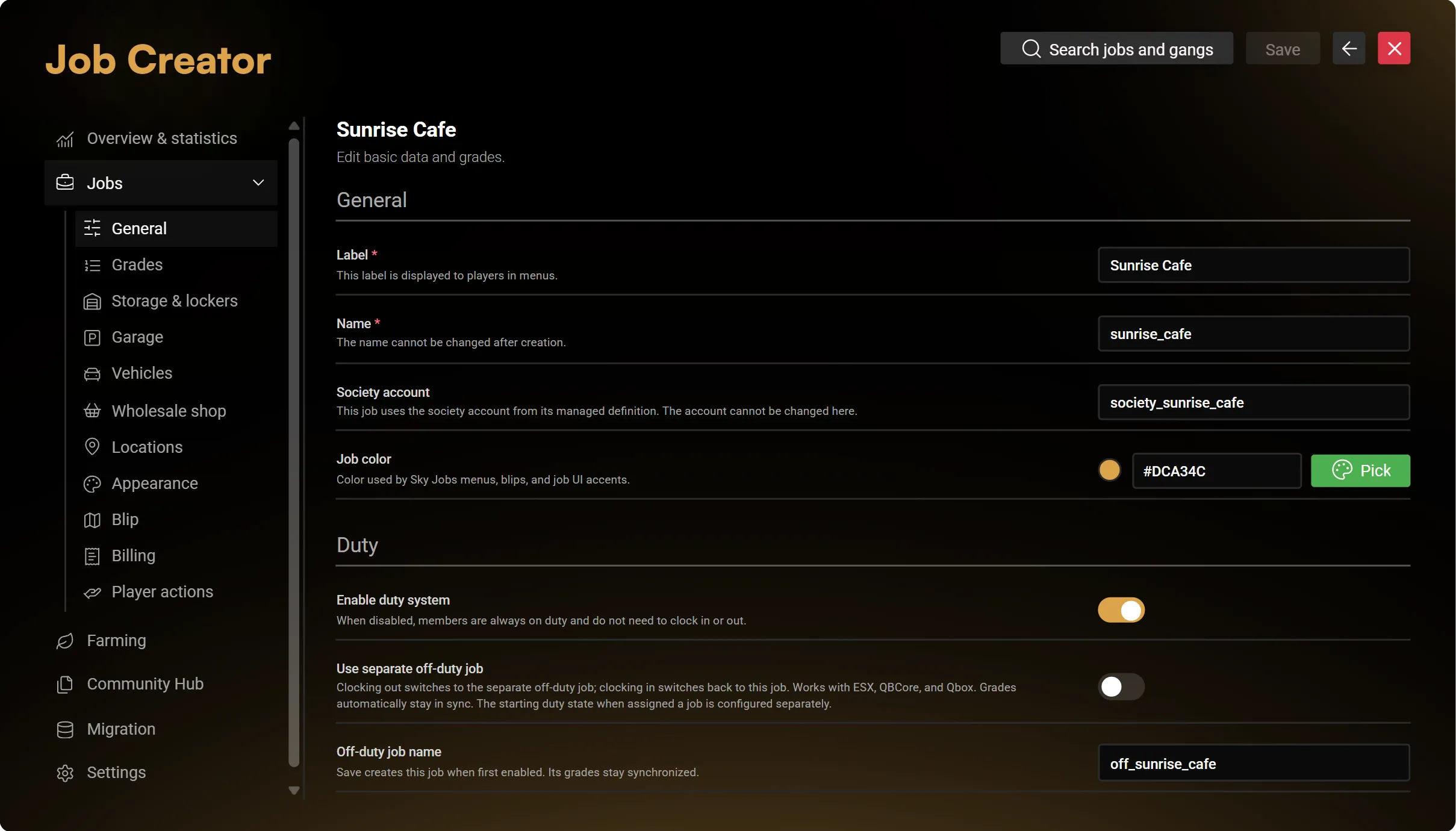
Create the job
- Open
/jobcreatoror/jobscreator. - Choose Jobs → Create job.
- Enter the display Label players will see, such as
Sunrise Cafe. - Enter a unique technical Name, such as
sunrise_cafe. This name cannot be changed after creation. - Review the creation plan and confirm.
If creation reports an error, keep the result and resolve that error before trying again. Check the job list first: part of the setup may already have been saved.
Set up ranks
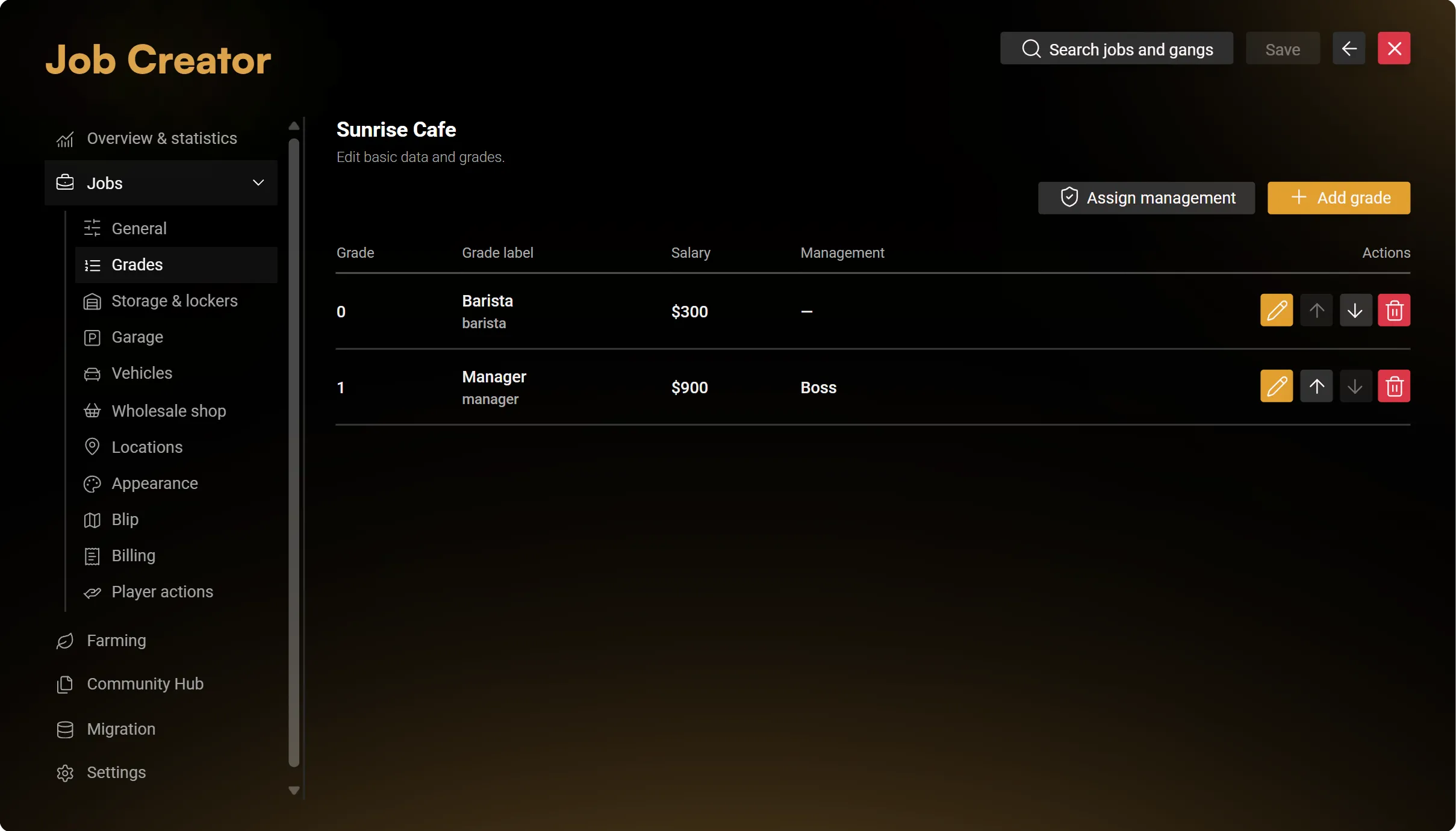
Open the job's Grades section. New jobs receive the two starting ranks configured in Settings.
Give each rank a clear name and review its salary and management permissions. Use the grade numbers shown in the editor. Existing jobs may have gaps between numbers; you do not need to renumber them.
For company-funded salaries, make sure the job has a working company account and enough funds. See Employee tools.
Place an interaction
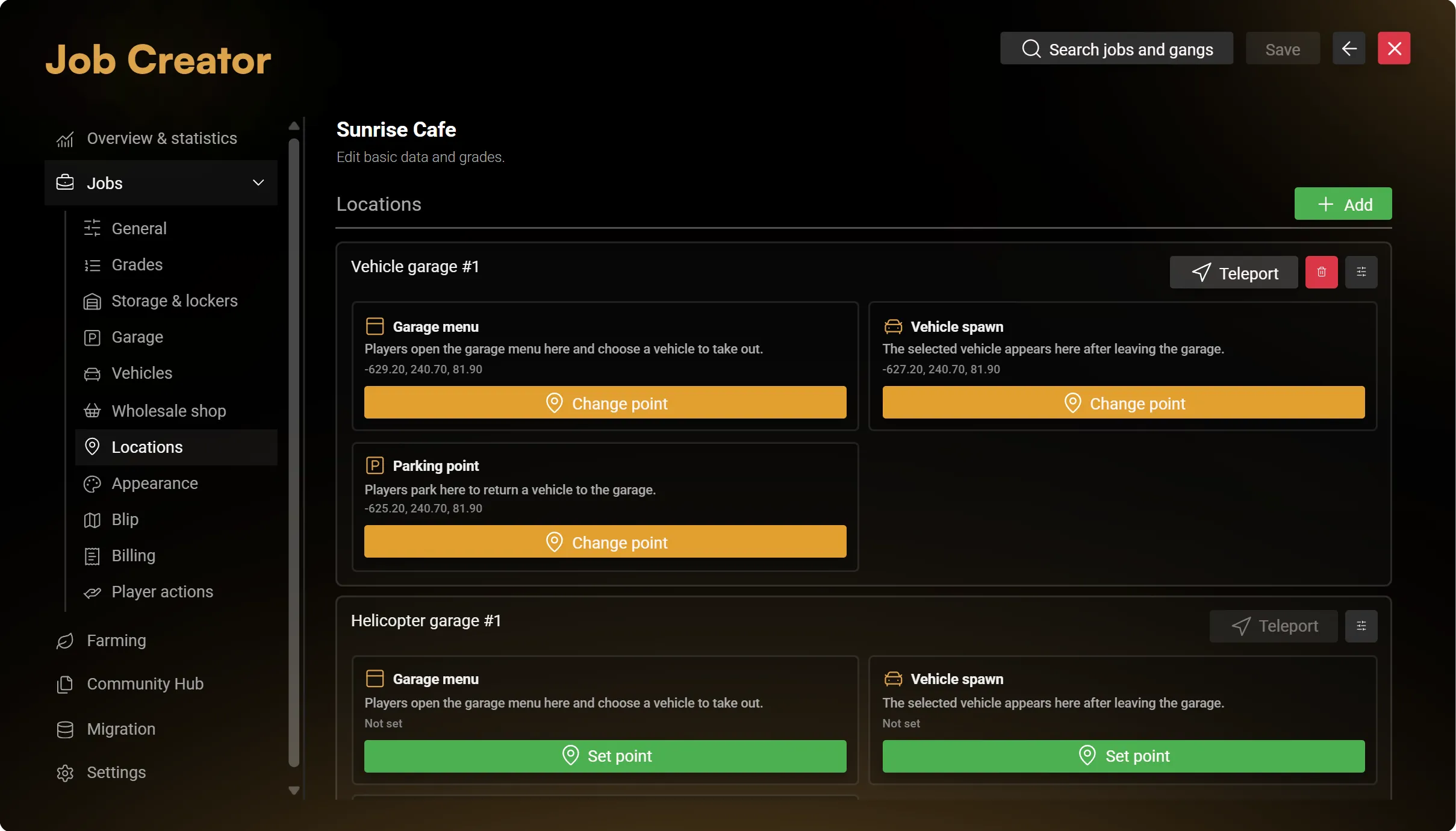
- Open Locations and add the workplace point you need, such as storage or a garage.
- Use its placement action to choose the position in game.
- For a garage, also place the vehicle spawn and parking/return points.
- Open Interaction to choose how the point appears to players.
- Use the header Save action.
Try the point with a character assigned to the job and the required rank. If the feature requires duty, clock in first.
Add the features you need
Start with the job's actual workflow. A cafe might need storage, a wardrobe, a supply shop and business announcements. Enable other tools when you need them.
Continue with Job settings for the available sections and saving options.